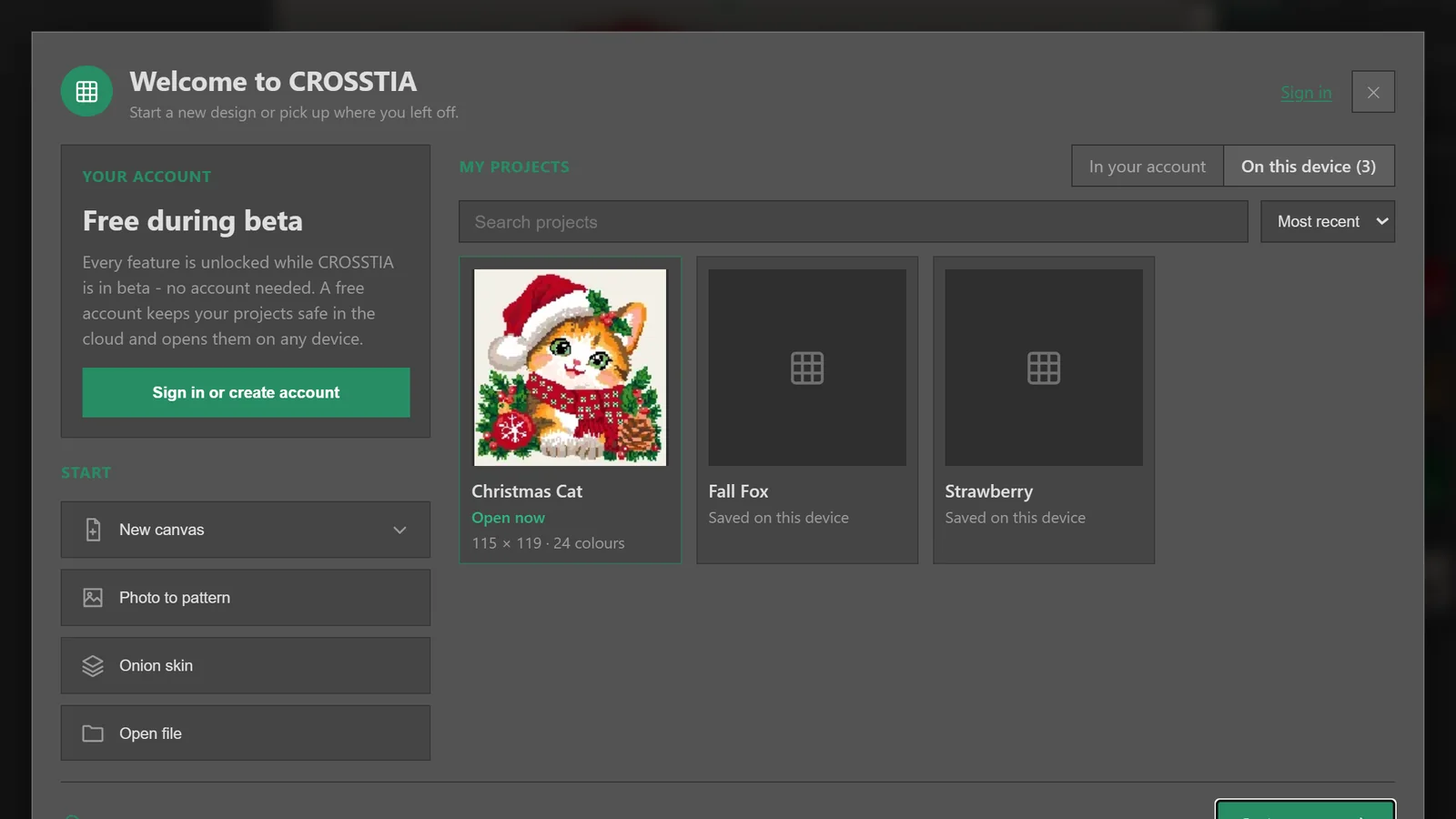
Start from your Dashboard
Start a blank canvas, turn a photo into a pattern, trace one with Onion Skin, or reopen a project — saved on this device, or in your free account on every device.
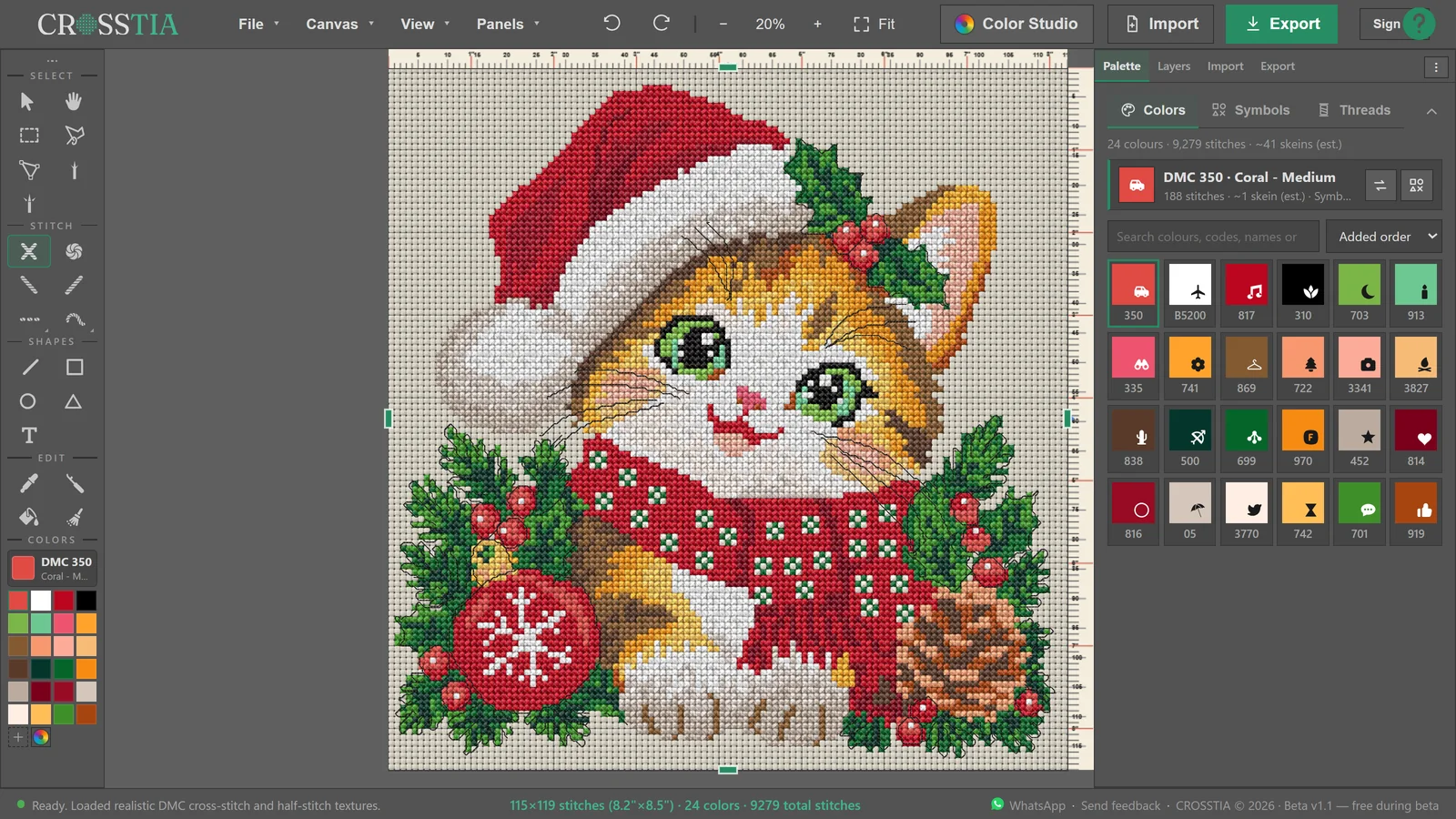
Design and refine your pattern
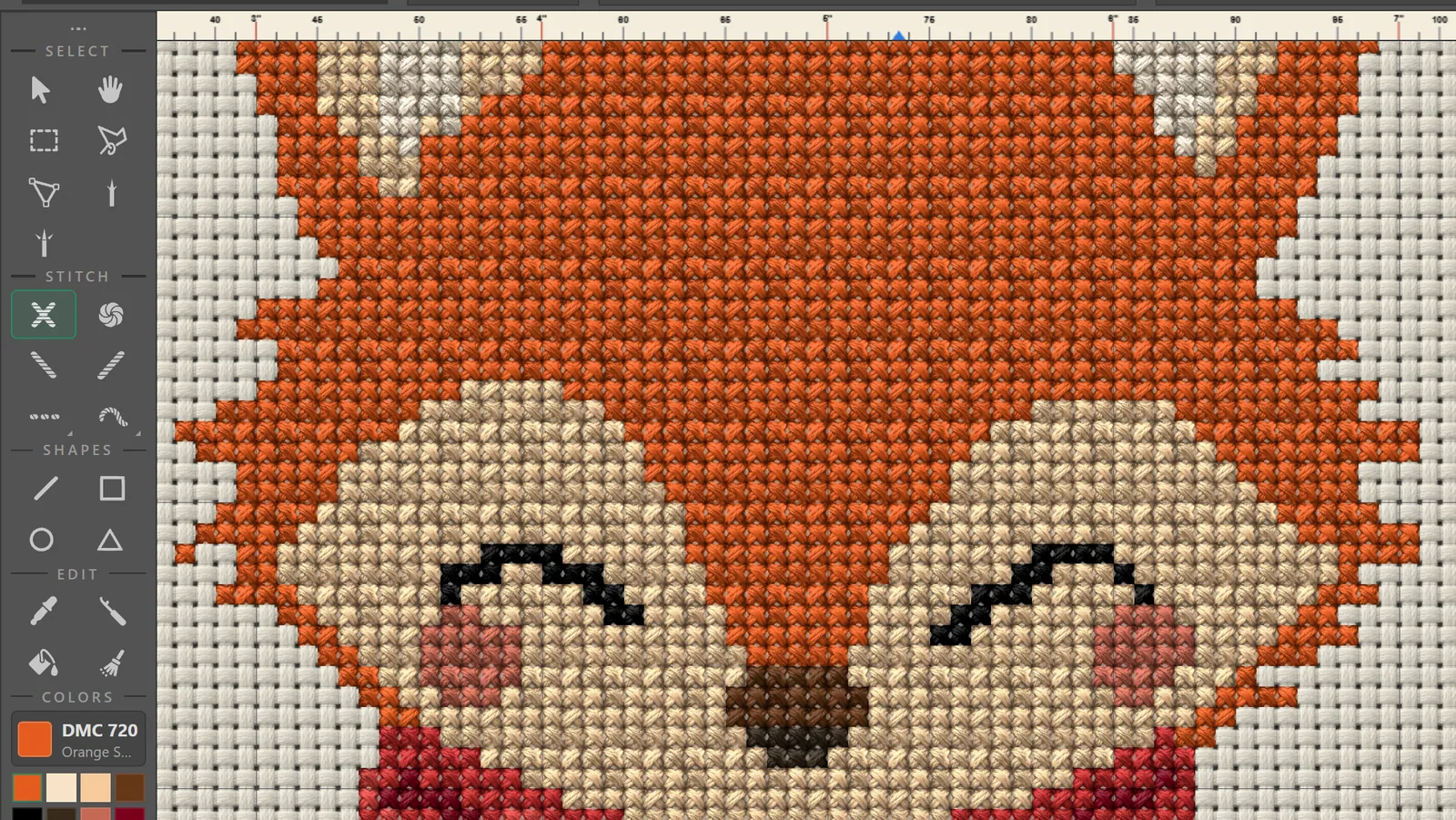
Pick a colour and stitch cell by cell with the Pencil, fill large areas, select with Lasso or Magic Wand, and organise everything in layers.
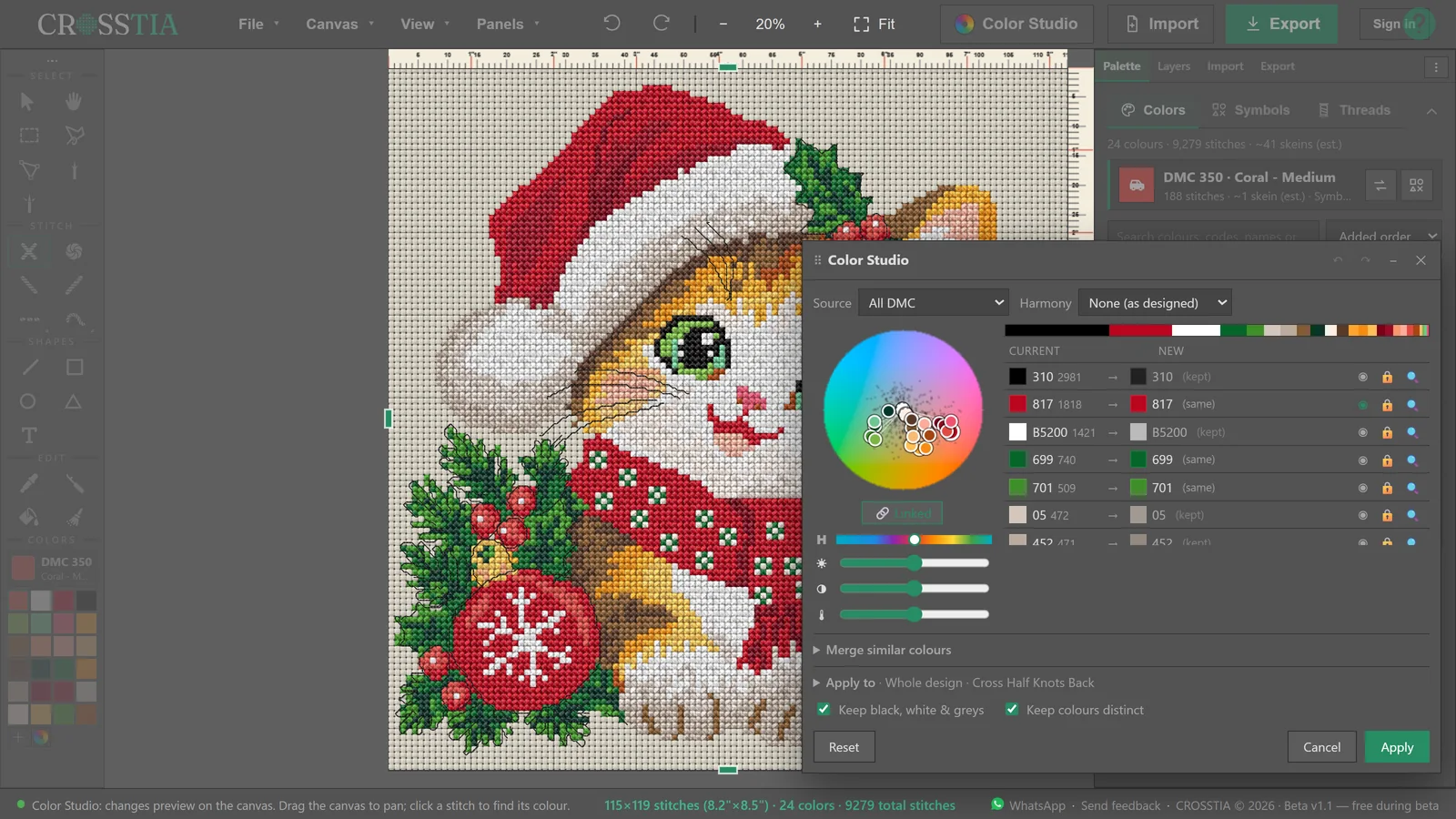
Real threads and chart symbols
Every colour is a real DMC or Anchor thread with its own chart symbol — star your favourite symbols and they are used first. Recolour the whole design in Color Studio.
Go beyond full stitches
Half, Quarter, French Knot and Backstitch — with directional Thread Guide snapping — all live in the Stitch toolbar.
Export your PDF pattern
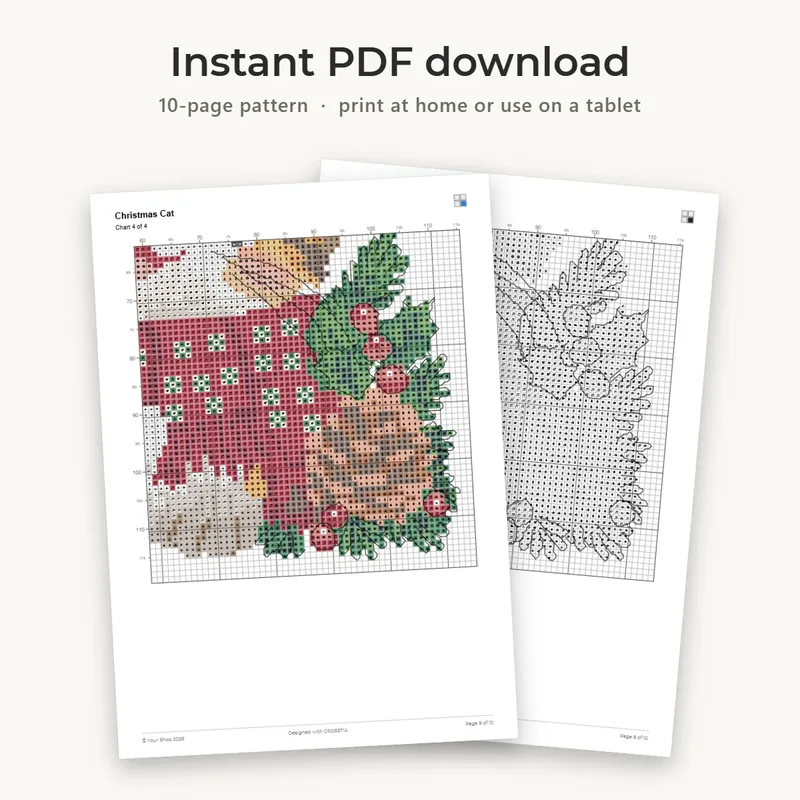
Six print-ready layouts with your shop branding, plus PNG, JPG, SVG and OXS — from the Export button.
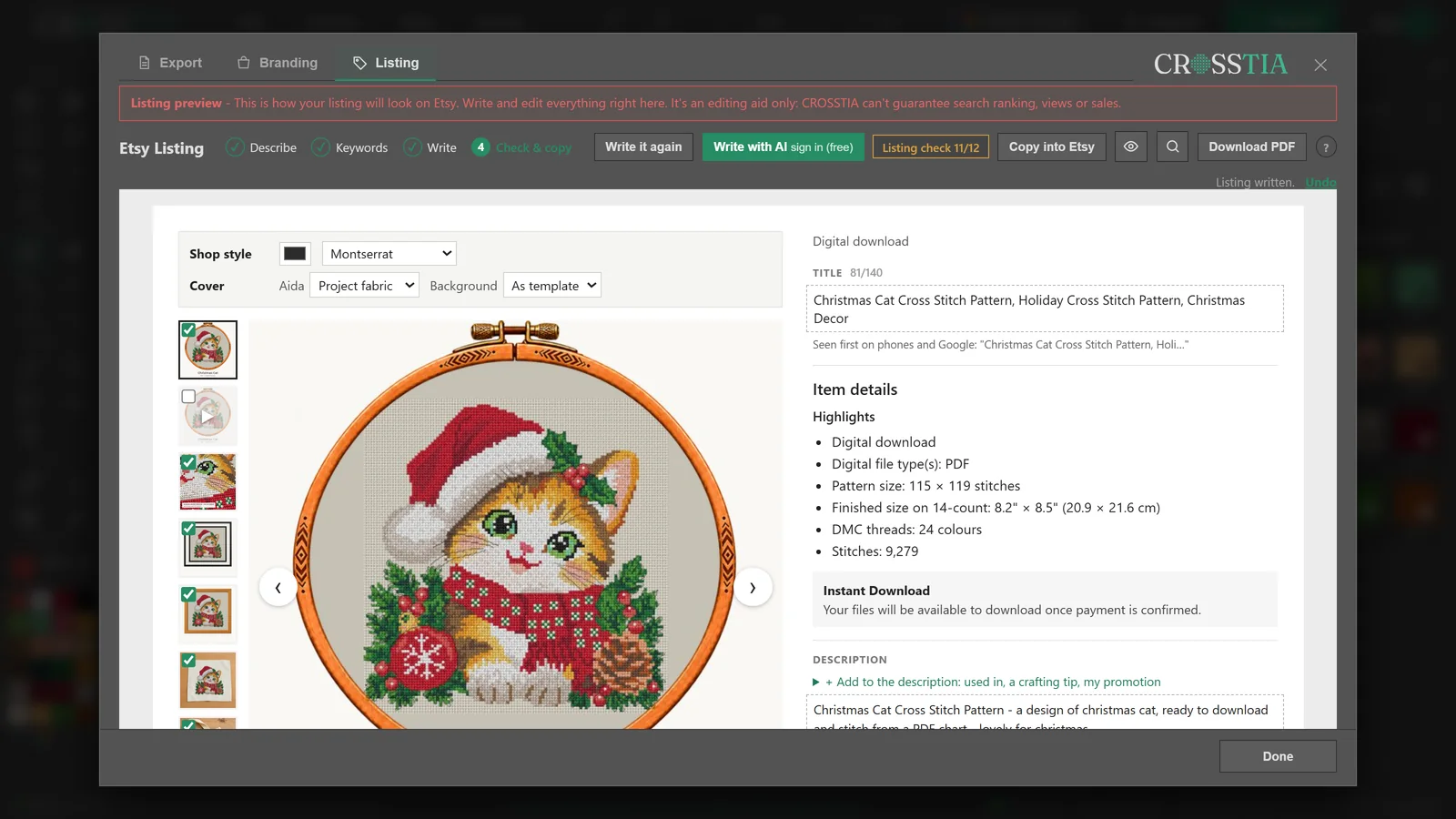
Create your Etsy listing
Listing photos, a listing video and your title, tags and description — edited on an Etsy-style page, then downloaded as one Etsy Package.